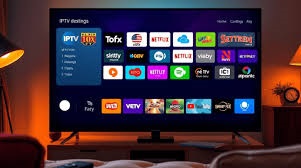
In today’s digital streaming era, firestick iptv has become one of the most powerful ways to access live TV, movies, and on-demand content directly on your television. We now rely on internet-based streaming instead of traditional cable subscriptions. With the Amazon Fire TV Stick, users can unlock a highly flexible entertainment system that delivers thousands of channels and content libraries at their fingertips.
This guide provides a complete, detailed walkthrough for beginners who want to set up and optimize firestick iptv properly. We cover installation, configuration, security setup, troubleshooting, performance enhancement, and expert-level tips to maximize viewing quality.
What Is Firestick IPTV and How It Works
IPTV stands for Internet Protocol Television. Instead of receiving television signals through satellite or cable, IPTV delivers content over an internet connection. When combined with Amazon’s Fire TV Stick, it becomes a portable and powerful streaming device.
With firestick iptv, users stream:
- Live international TV channels
- Sports broadcasts
- Premium entertainment channels
- On-demand movies
- Series libraries
The Firestick acts as the hardware interface while IPTV apps deliver content via internet servers.
Requirements Before Setting Up Firestick IPTV
Before installation, ensure you have the following essentials:
- Amazon Fire TV Stick device
- Stable broadband connection, minimum 15 Mbps for HD
- Active IPTV subscription
- IPTV app compatible with Firestick
- Amazon account
A strong internet connection directly impacts streaming quality. For 4K streaming, speeds above 25 Mbps are recommended.
Step 1: Prepare Your Firestick Device
Enable Apps from Unknown Sources
To install IPTV apps not found in the Amazon App Store:
- Go to Settings
- Select My Fire TV
- Choose Developer Options
- Turn on Apps from Unknown Sources
- Enable ADB Debugging
This step allows installation of third-party IPTV applications.
Connect to Stable WiFi
Navigate to Settings, then Network. Connect to a high-speed WiFi network. Avoid weak signals. Position your router closer to your device if buffering occurs.
Step 2: Install Downloader App
The Downloader app allows us to install IPTV apps via direct URLs.
- Open Amazon App Store
- Search for Downloader
- Install the application
- Grant necessary permissions
This tool enables manual installation of IPTV player apps.
Step 3: Install IPTV Application
Using Downloader:
- Enter the IPTV app URL provided by your provider
- Download the APK file
- Install the application
- Delete the APK file after installation to save storage
Popular IPTV player formats include M3U playlist players and Xtream Codes compatible apps.
At this stage, firestick iptv becomes operational once login credentials are added.
Step 4: Enter IPTV Subscription Details
Most IPTV providers offer:
- M3U URL
- Username
- Password
- Server URL
Open the IPTV app and enter credentials carefully. After login, the system will load channel categories and VOD libraries.
We recommend restarting the app once channels load to ensure stable indexing.
Optimizing Streaming Performance
Proper optimization prevents buffering and lag.
Clear Cache Regularly
Navigate to:
Settings → Applications → Manage Installed Applications → IPTV App → Clear Cache
Clearing cache improves responsiveness.
Use Ethernet Adapter
WiFi fluctuations cause buffering. A Firestick Ethernet adapter provides stable wired connectivity.
Limit Background Apps
Force stop unused apps to free RAM. This improves performance significantly.
With these adjustments, firestick iptv delivers smoother playback and higher reliability.
Adjust Video Settings for Best Quality
Inside the IPTV app settings:
- Set buffer size to medium
- Enable hardware decoding
- Adjust aspect ratio to fit screen
- Select preferred resolution
Avoid forcing 4K resolution on slow connections. Let adaptive streaming manage quality automatically.
Security and Privacy Setup
Using IPTV services over the internet requires attention to security.
Install a VPN
A VPN encrypts traffic and protects identity. It also prevents ISP throttling. Install a trusted VPN from the Amazon App Store.
Avoid Free IPTV Sources
Unverified services may expose personal data. Always choose reliable providers with stable servers.
By securing your setup, you maintain uninterrupted and private streaming sessions.
Troubleshooting Common Firestick IPTV Issues
Buffering Problems
- Restart router
- Clear IPTV app cache
- Switch server within app if available
- Reduce video resolution
Login Errors
- Verify credentials
- Confirm subscription status
- Re-enter server URL
App Crashing
- Update IPTV app
- Restart Firestick
- Reinstall application
Consistent maintenance ensures long-term functionality of firestick iptv.
Organizing Channels and Favorites
Most IPTV apps allow custom organization:
- Create favorite channel lists
- Hide unwanted categories
- Sort channels alphabetically
- Enable parental controls
These features personalize the experience and simplify navigation.
Using External Media Players
Some IPTV apps support integration with external players such as VLC or MX Player. External players often provide:
- Better codec support
- Improved playback controls
- Advanced subtitle customization
Enable external player option inside IPTV settings if supported.
Recording and Catch-Up Features
Premium IPTV subscriptions may include:
- Catch-up TV
- Electronic Program Guide
- Recording options
Activate EPG inside settings by entering the provided XML URL. This loads program schedules for easier browsing.
Maintenance Tips for Long-Term Performance
- Restart Firestick weekly
- Keep apps updated
- Monitor storage usage
- Delete unused applications
- Refresh IPTV playlist monthly
Regular upkeep prevents technical issues and ensures consistent performance.
Advantages of Using Firestick IPTV
We gain several benefits when using firestick iptv:
- Affordable alternative to cable
- Access to global content
- Portable device
- Simple installation
- On-demand flexibility
The Firestick platform combines simplicity and power in one compact device.
Best Internet Setup for Streaming Stability
For optimal streaming:
- Use dual-band router
- Connect to 5 GHz network
- Position router centrally
- Avoid network congestion
- Upgrade outdated modem hardware
A stable network is essential for uninterrupted streaming sessions.
Advanced Tips for Power Users
- Enable developer options for performance tweaks
- Adjust display calibration
- Customize home screen shortcuts
- Use cloud storage for backups
- Install file manager apps
These advanced configurations help experienced users enhance control and usability.
Conclusion
We have outlined every essential step to successfully install, configure, optimize, and secure your streaming system. From enabling developer settings to advanced performance tuning, this complete guide ensures a smooth setup process for beginners and experienced users alike. With proper internet speed, reliable IPTV service, and regular maintenance, firestick iptv transforms your television into a powerful streaming hub that rivals traditional broadcasting systems.
FAQs
1. Is Firestick IPTV legal to use?
Legality depends on the IPTV provider and content licensing. Always verify your service provider’s compliance.
2. Do we need high-speed internet for Firestick IPTV?
Yes. Minimum 15 Mbps for HD streaming. 25 Mbps or higher for 4K.
3. Can we use Firestick IPTV without cable?
Yes. IPTV replaces traditional cable by streaming content over the internet.
4. Why does buffering occur during streaming?
Buffering usually results from slow internet, server overload, or weak WiFi signal.
5. Can we install multiple IPTV apps on Firestick?
Yes. Firestick allows installation of multiple apps depending on available storage.
For more information: Fire IPTV Hub