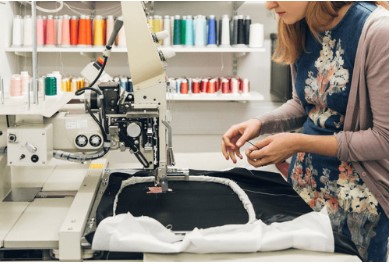
Embroidery is more than just needle and thread. It is about turning your design into something real. Your logo can look amazing on shirts, hats, jackets, and bags—but only if it is prepared correctly for your machine. If you want your embroidery to come out clean and sharp, you need a SEW ready stitch file.Many beginners try to just load an image into the machine. That does not work. You have to Convert Business Logo to SEW File Format first.
This process ensures the machine knows where to stitch, when to change colors, and how to handle every detail. From my years in embroidery, I can tell you that good preparation saves time, reduces errors, and makes your design look professional. Let’s walk through the full process.
What Is a SEW Stitch File?
A SEW stitch file is a format used by Janome embroidery machines. It tells the machine exactly how to stitch your design. Unlike a JPG or PNG, a SEW file has:
-
Stitch locations
-
Stitch type
-
Color changes
-
Thread trims
Without a proper stitch file, your machine cannot work correctly. The logo may stitch with errors, miss colors, or cause thread breaks. Think of a SEW file like a map. The machine follows it step by step to create the perfect design.
Why You Cannot Stitch a Logo Image Directly
Many people think a computer image is enough. It is not.
Image files like JPG, PNG, or BMP only show pixels. They do not contain stitching information. Machines cannot read them.
If you try to stitch an image directly:
-
The machine will not run
-
The stitches will look messy
-
Thread may break
-
Small details can be lost
Digitizing your logo into a SEW file fixes all this. It converts the design into instructions the machine understands.
What Is Digitizing?
Digitizing is the process of converting a design into stitches.
It is more than just tracing. Good digitizing is done by hand with software. The digitizer chooses:
-
Stitch type (satin, fill, or running)
-
Stitch direction
-
Stitch density
-
Underlay for stability
-
Path order for efficiency
Each decision affects how your logo looks and how fast the machine can stitch.
From my experience, a well-digitized logo saves time in production. It also reduces mistakes, thread breaks, and wasted fabric.
Step-by-Step: Create a SEW Ready File
Here is a simple way to prepare your logo for SEW machines.
Step 1: Start With a High-Quality Logo
Always use a clear, high-resolution image.
Best formats include:
-
AI
-
EPS
-
PDF
-
PNG (high quality)
Avoid blurry or small logos. Low-quality images make the digitizer guess details. This can lead to messy stitches.
Step 2: Open the Logo in Digitizing Software
Next, import the logo into embroidery software. Common tools include:
-
Wilcom
-
Hatch
-
Pulse
Inside the software, the digitizer redraws the logo using stitches instead of pixels. This step takes skill and attention to detail.
Step 3: Set the Right Size
Size matters for embroidery.
Ask:
-
Where will this logo be stitched?
-
On shirts, caps, or jackets?
-
How large should it be?
Small text needs satin stitches. Large shapes need fill stitches. Wrong sizing can cause poor stitch density and thread breaks.
From my hands-on experience, confirming the size before stitching prevents costly mistakes.
Step 4: Choose the Correct Stitch Types
Different areas need different stitch types:
-
Running Stitch: Outlines and fine details
-
Satin Stitch: Text and borders
-
Fill Stitch: Large areas and solid shapes
Choosing the wrong stitch can ruin the design. A balanced approach makes your logo clean and professional.
Step 5: Adjust Stitch Density
Density is the distance between stitches.
Too dense:
-
Fabric puckers
-
Threads break
-
Needle may heat
Too light:
-
Fabric shows through
-
Design looks thin
-
Shape is weak
The right density depends on fabric type and design size. For shirts, normal density works well. Caps or thick jackets need lower density and proper underlay.
Step 6: Add Underlay
Underlay is a base layer of stitches.
It:
-
Supports the fabric
-
Holds design shape
-
Prevents sinking
Skipping underlay is a common mistake. I have seen logos sink into shirts without it. Proper underlay ensures smooth results.
Step 7: Plan Stitch Direction and Path
Stitch direction affects texture and shine.
Path planning reduces:
-
Needle jumps
-
Thread trims
-
Production time
For large orders, smart pathing can save hours. At my shop, careful planning improved daily output without increasing machine speed.
Step 8: Export as SEW File
After digitizing, export the design in SEW format.
Before exporting:
-
Double-check size
-
Check thread color stops
-
Confirm stitch count
Now your logo is ready for the Janome machine.
Test the File First
Never skip test stitching.
Check for:
-
Thread breaks
-
Loose stitches
-
Misaligned details
-
Puckering
Testing prevents wasted fabric and saves time in bulk production.
Common Mistakes to Avoid
Relying Only on Auto Digitizing
Auto digitizing is fast but not perfect.
It may:
-
Add too many stitches
-
Ignore small details
-
Create messy stitch paths
Manual editing always improves results.
Ignoring Fabric Type
Fabric affects stitch settings.
-
Caps need pull compensation
-
Stretch fabrics need lighter density
-
Thick jackets need stronger stitches
Ignoring fabric causes thread breaks or warped designs.
Making Text Too Small
Very small text is hard to stitch.
Keep at least 4–5 mm height for satin stitches. Anything smaller may need running stitch, which can lose detail.
Tips for Better SEW Files
-
Use high-quality thread to prevent breaks
-
Replace needles often
-
Use the correct stabilizer: cut-away for shirts, tear-away for caps
-
Keep your machine clean
-
Test stitch all new designs
From real experience, these habits save time and reduce mistakes.
Cost Considerations
The cost to create a SEW stitch file varies by:
-
Logo size
-
Number of colors
-
Level of detail
-
Stitch count
Simple chest logos cost less. Large jacket back logos cost more. Avoid very cheap offers—they often deliver poor digitizing that wastes fabric and time.
Real-World Example
I once prepared a company logo for 200 polo shirts.
At first, we used a low-quality image. The auto-digitized file had too many stitches. We faced broken threads and misaligned details.
Then we:
-
Used a high-quality PNG
-
Digitized manually
-
Added proper underlay
-
Checked stitch density
Result:
-
Clean embroidery
-
No thread breaks
-
Finished ahead of schedule
This shows why proper SEW digitizing matters.
Final Thoughts
Creating a SEW ready stitch file is not hard. But it must be done carefully.
Key points:
-
Start with high-quality artwork
-
Digitize by hand
-
Set proper size, stitch type, and density
-
Add underlay
-
Plan stitch path
-
Test before bulk production
From hands-on experience, most embroidery issues come from poor digitizing, not the machine.
When done correctly, your logo will stitch clean, sharp, and professional every time.
With the right preparation, SEW files make your embroidery work easier, faster, and stress-free.
This approach ensures smooth production, reduces errors, and gives professional results every time you stitch a logo.